We now have a simple “parsed” analogue voltage input (terminal=V01) into our Python script, next is to send that data off to for visualisation/anaysis/storage in Ubidots (coming posts I promise to do one up for AWS IoT Core, MQTT i.e. Mosquitto broker and also Azure IoT Hub).
We have two usual ways of doing this at the gateway ..
1. HTTP requests i.e. POST
You can refer to proper reference at the Ubidots HTTP REST API developer guide for details, it’s simply ..
POST {PATH} HTTP/1.1<CR><LN> Host: {HOST}<CR><LN> User-Agent: {USER_AGENT}<CR><LN> X-Auth-Token: {TOKEN}<CR><LN> Content-Type: application/json<CR><LN> Content-Length: {PAYLOAD_LENGTH}<CR><LN><CR><LN> {PAYLOAD} <CR><LN>
.. where in our case from where we already parse out our required variable V01 from the WISE-4012’s json payload (which we also grabbed using HTTP requests) …
curl -X POST ‘https://industrial.api.ubidots.com/api/v1.6/devices/wise’ -H ‘Content-Type: application/json’ -H ‘X-Auth-Token: BBFF-Exxxx0toRxxxxPBaxxxxpaAYXxxxxq’ -d ‘{“V01”: 4.8220}’
.. where “wise” is our device name, Token is “unique ID” and V01 is label of data to be sent. Next …
2. MQTT
For our production gateway, we chose to use MQTT, deployed using Python Paho MQTT client (by the good folks supporting the Eclipse Foundation). It’s just more versatility .. QOS, level of security and error checking options. Refer to Ubidot’s MQTT developer guide if your are planning to test free on their back-end.
For us, this is “redacted” snippets of how the data flows in our cloud connect client script to send that single test data (VALUE=Vo1) to Ubidot’s MQTT broker
payload = json.dumps({VARIABLE_LABEL:{‘value’:VALUE,’timestamp’:str(epoch)}})
topic = “{}{}”.format(TOPIC, DEVICE_LABEL)
connect(mqtt_client, MQTT_USERNAME,MQTT_PASSWORD, BROKER_ENDPOINT, TLS_PORT)
print(‘After connect(), connected=’,connected)
publish(mqtt_client, topic, payload) …. response of “good” send …
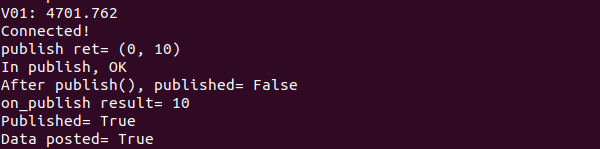
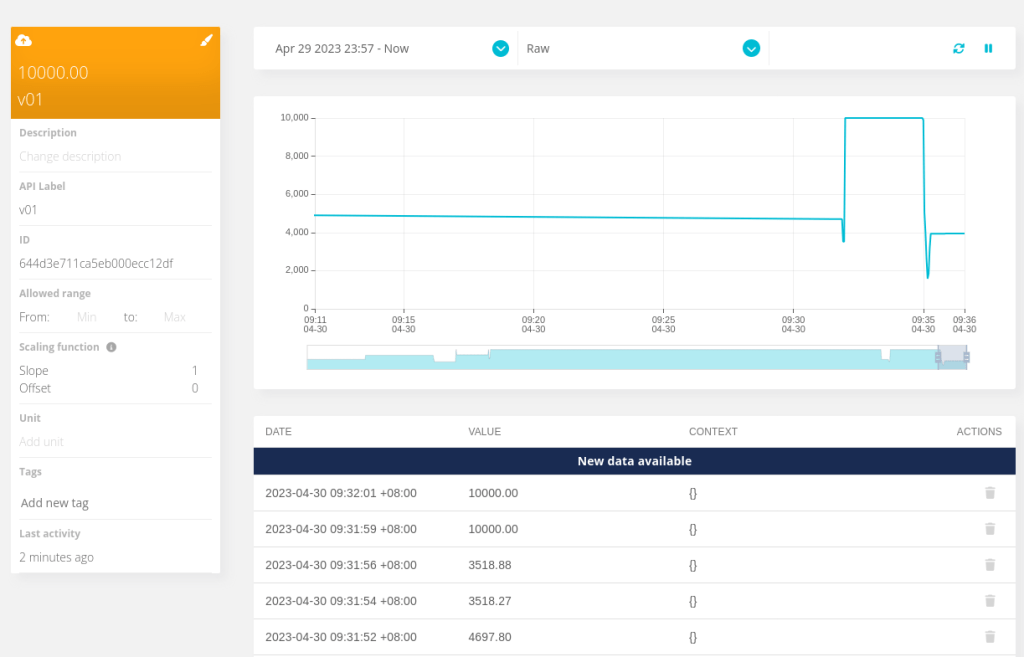
We can then check at the cloud side if mew device data has been received …
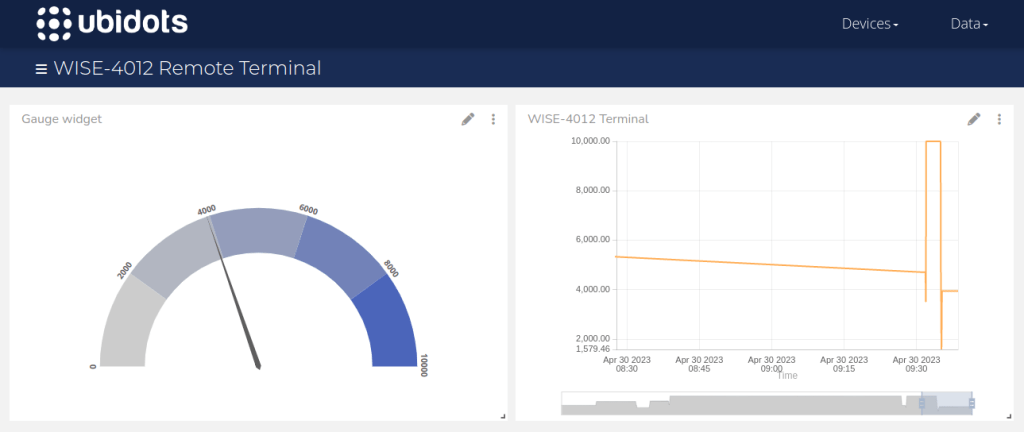
With “iot sensor” data in the pocket, we can slide over to Data and add some visualisation “widgets” they call it ..
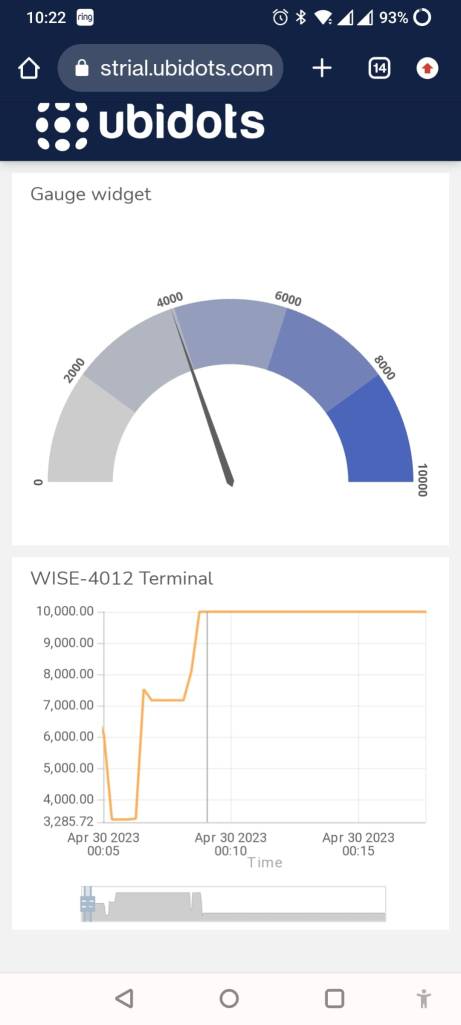
To really impress some older folks at the office (you probably have to throw in a dancing and singing Joe Biden generated using GPT4.0 these days) .. you can create a public URL link of the dashboard and access it from any where you like ..
That’s all folks, hope was useful. Hit me if any questions.
Related posts
Latest posts
 Machine Learning for IoT .. an old school EEE rite of passage. Learn, Test, Integrate, Test and Deploy Solutions